Recording a Test
tip
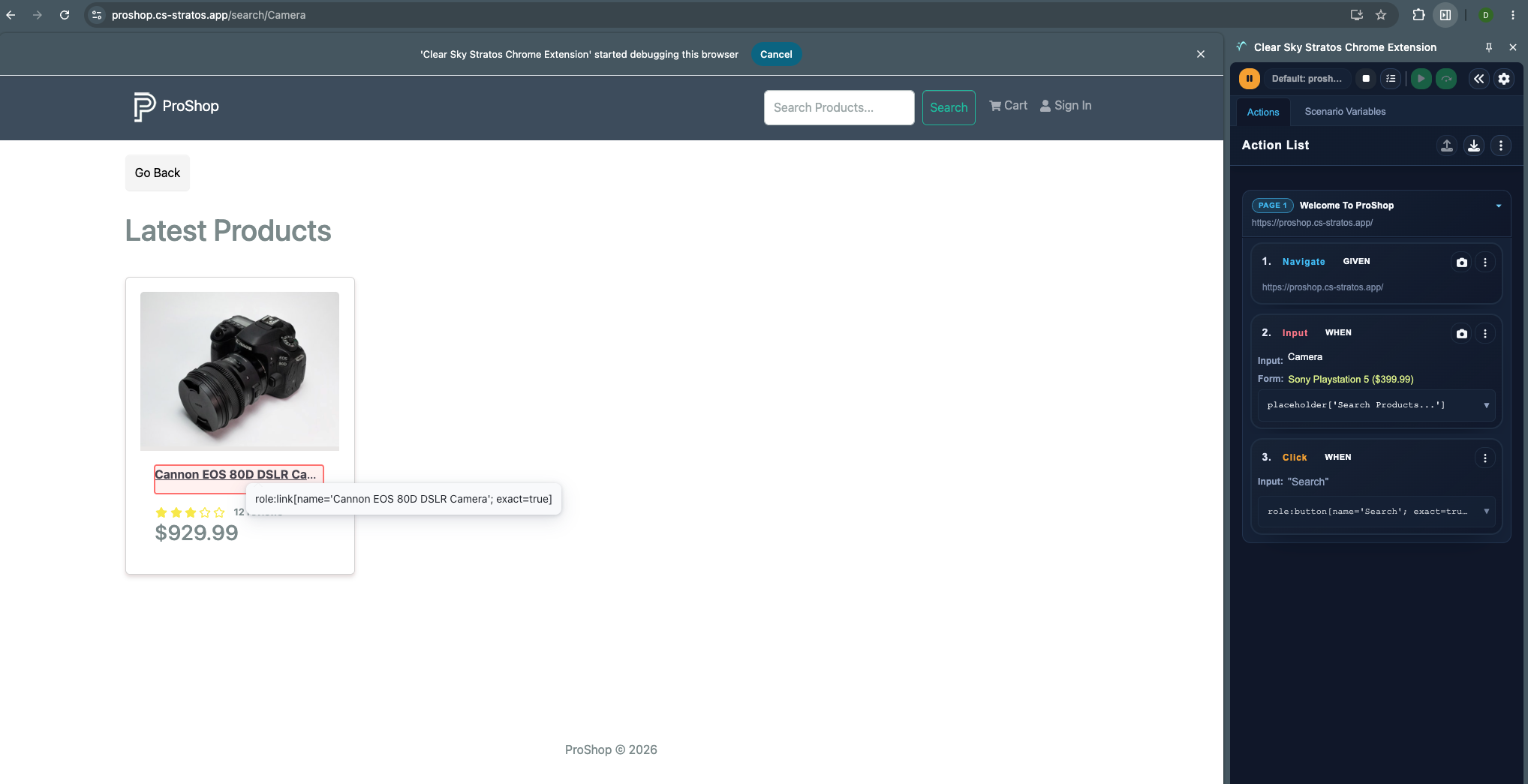
As you record: Actions are being captured in the extension. Highlighting on the web page will show you what is being selected.
Let's record your first test!
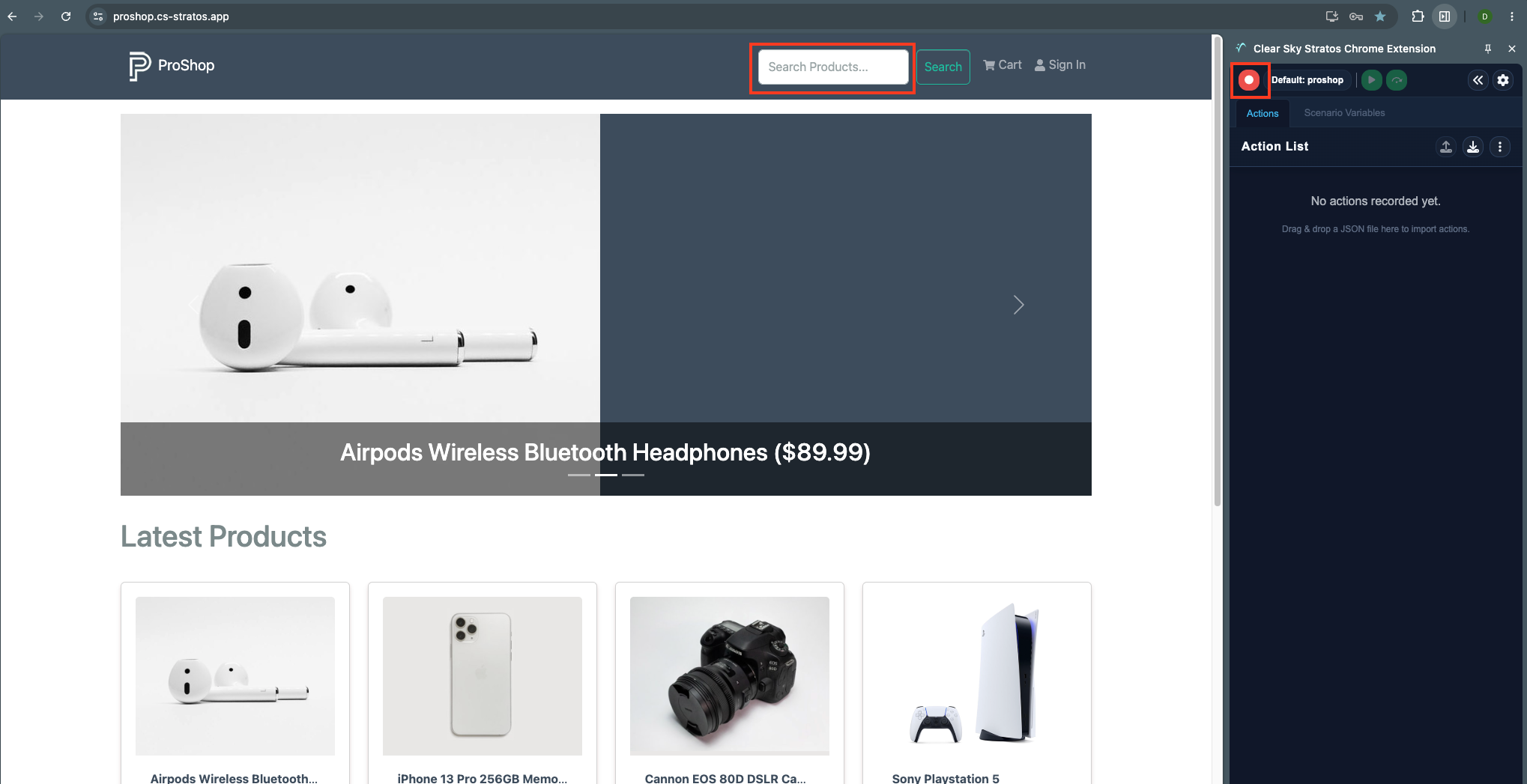
Start Recording
- Navigate to the ProShop demo site.
- Wait for the page to load fully
- Click Record in the extension
- Select Search Products.
- Enter Camera
- Click Search button
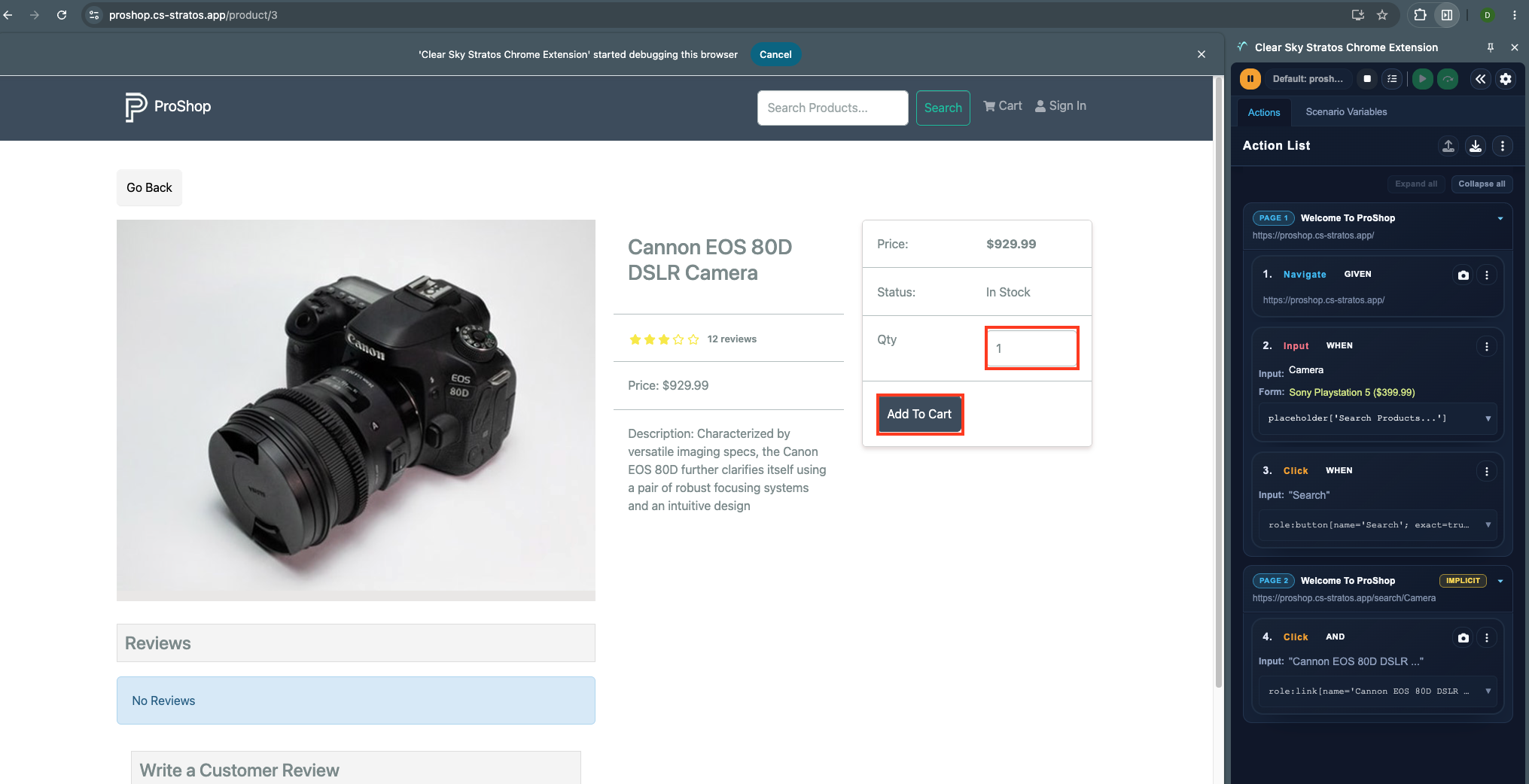
- Click the Cannon EOS 80D DSLR Camera product
Add Asserts
info
What is an Assert? An assert is a statement that verifies whether a specific condition is true during the execution of a test. It helps ensure that the application behaves as expected. There are two types of asserts
- Equality Assert: Checks if two values are equal (e.g., ensuring the total price displayed matches the expected price).
- Visibility Assert: Confirms that an element is visible on the page (e.g., verifying that a confirmation message appears after clicking the
During your recording, you can add asserts at crucial points.
Now let's make sure the right part details are displayed
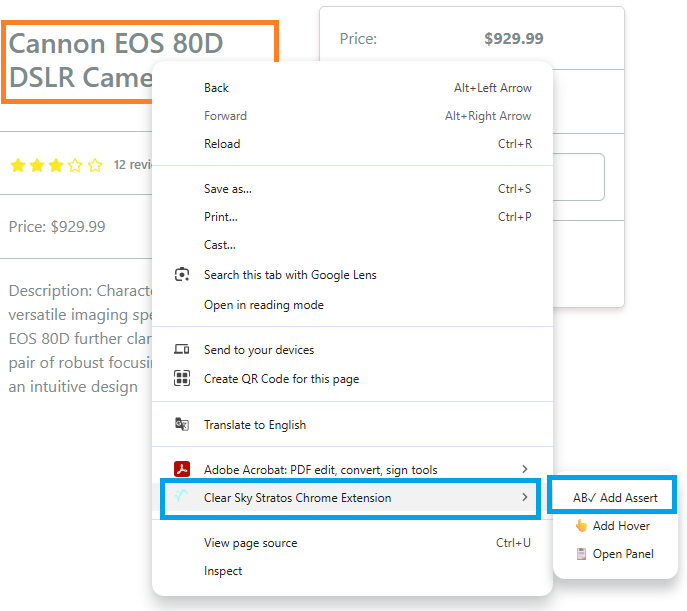
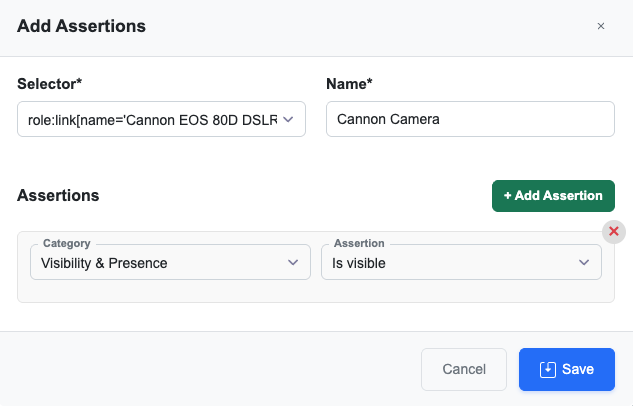
- Select the Cannon EOS 80D DSLR Camera text
- Right click with your mouse to open the context menu
- Go to Clear Sky Statos Extension
- Select Add Assert
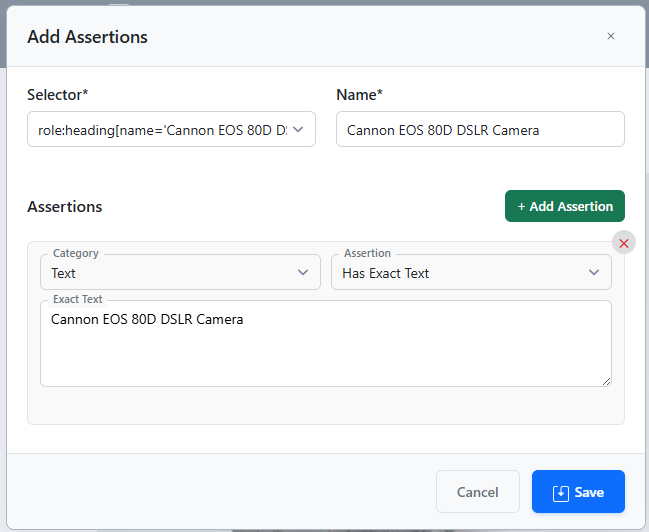
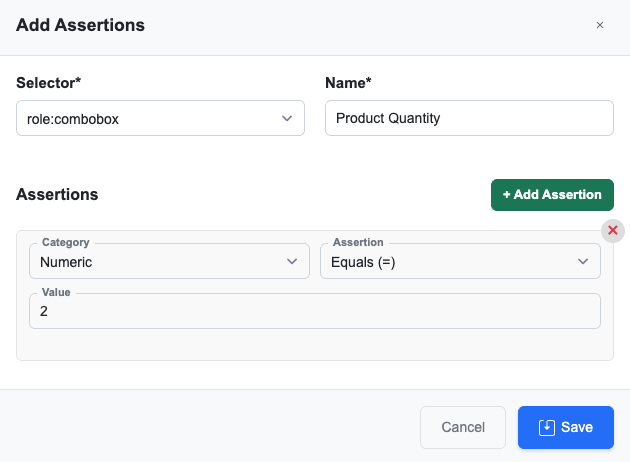
- Fill out the Add Assertions page
- Click Save
Finish Recording
- Change Qty to 2
- Click Add To Cart
- Add Assert to check that the camera is displayed in the cart
- Add Assert to check Qty
- Stop recording.
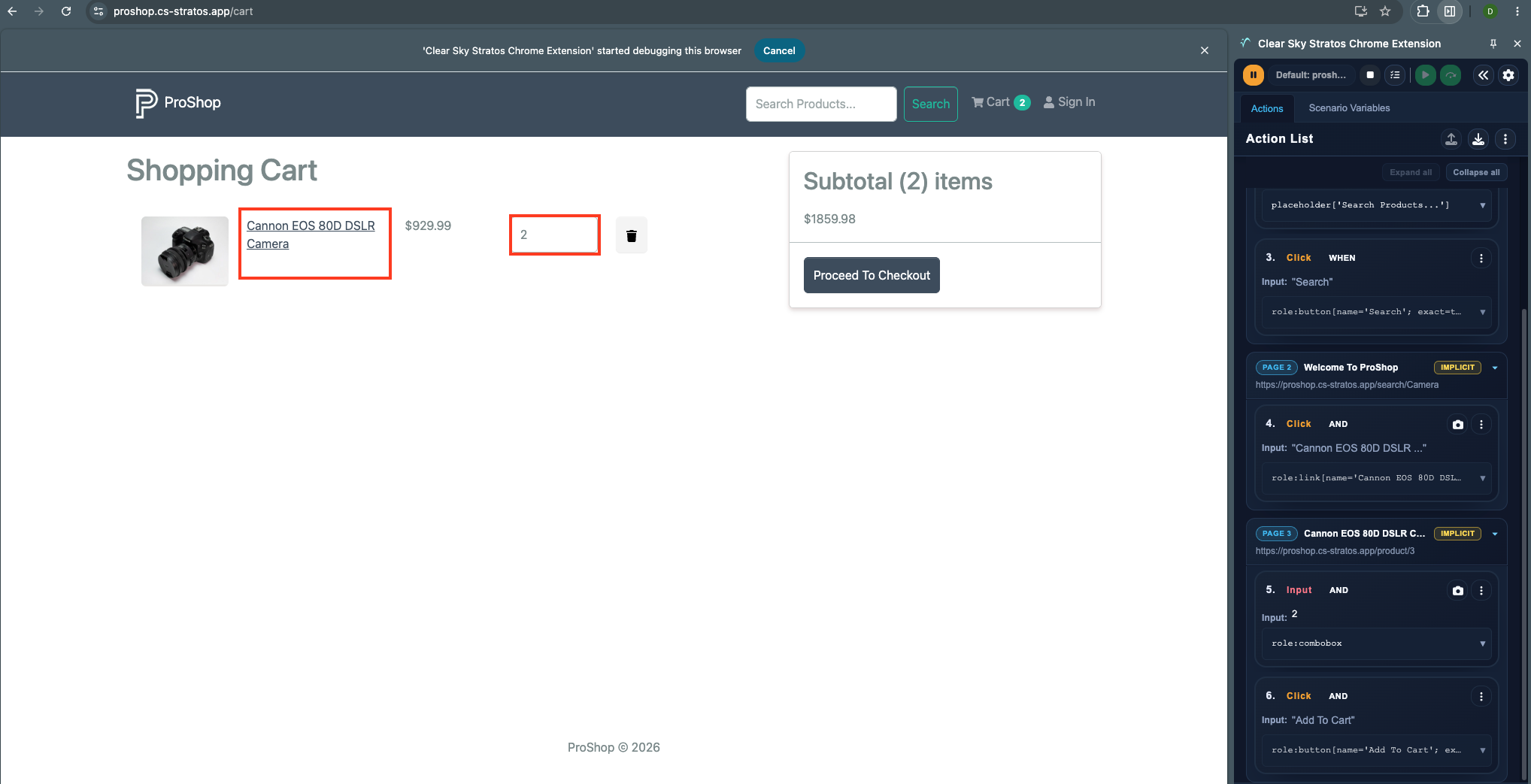
See how Action List is now full of items?
Now we can play the test back and make sure we don't need any changes!