Studio guide
Clear Sky Stratos™ Studio
The shared web workspace for organizing tests, running them in the cloud, and reviewing results across your team.
Stratos™ Studio is the web application where your tests are managed. Tests recorded with the Chrome Extension are uploaded here, organised into projects and suites, run in the cloud, and reported on — for the whole team, not just the person who recorded them.
New to Clear Sky? The Getting Started tutorial walks you through recording a test and uploading it end to end.
How the pieces fit together
Almost everything in Studio hangs off one hierarchy. It is worth learning first, because every screen in this guide is a view onto some level of it.
The row people miss
A negative test is not a test of its own — it is a variant of a positive scenario. It reuses that scenario's journey and changes one thing, so it reaches the same form the same way a real user does. That is why negative tests appear indented under the positive scenario they came from, and why the counters on a feature read like 4 positive · 4 negative · 0 edge.
Signing in
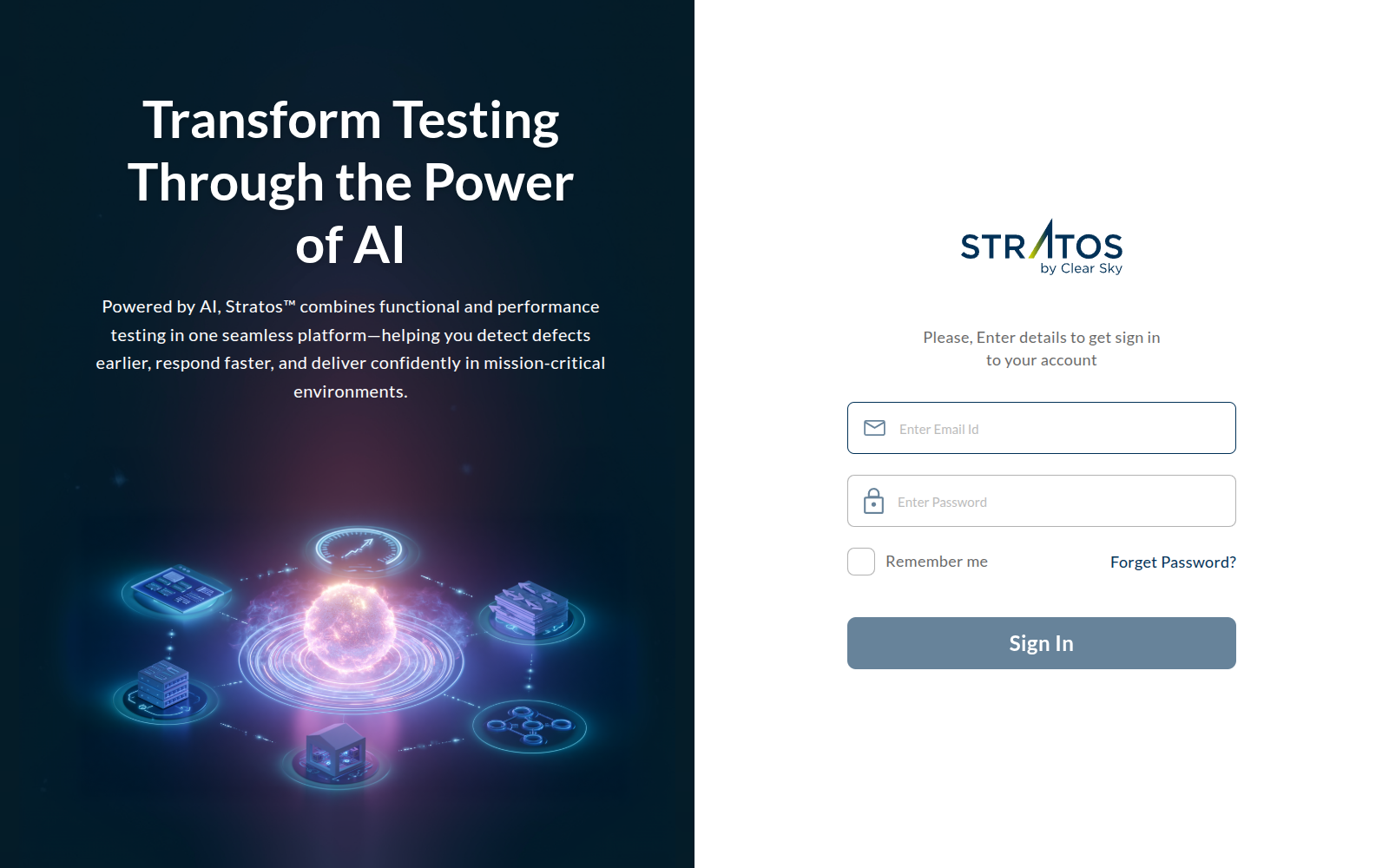
Open Studio and sign in with your email and password — the same account you use in the Chrome Extension. Your name and email appear at the bottom of the sidebar; the menu there is where you reach your profile and sign out.
The screen
Studio keeps the same frame on every page.
The header
Always present:
- the organization switcher, showing the organization you are working in
- Test Gen. — opens the negative test generation panel (see Generating negative tests)
- Test Runs — opens the runs panel (see Running tests)
The sidebar
On the left:
- Home — the dashboard
- Projects — every project you have access to, with a search box above the list. Click a project to open its menu: Test Suites, Test Plans, Reports, Generate Java, Settings. Every project carries the same five entries.
- Administration — Organization, Users, Roles. Visible only if your role allows it.
- Support — Feedback, and a link to this documentation.
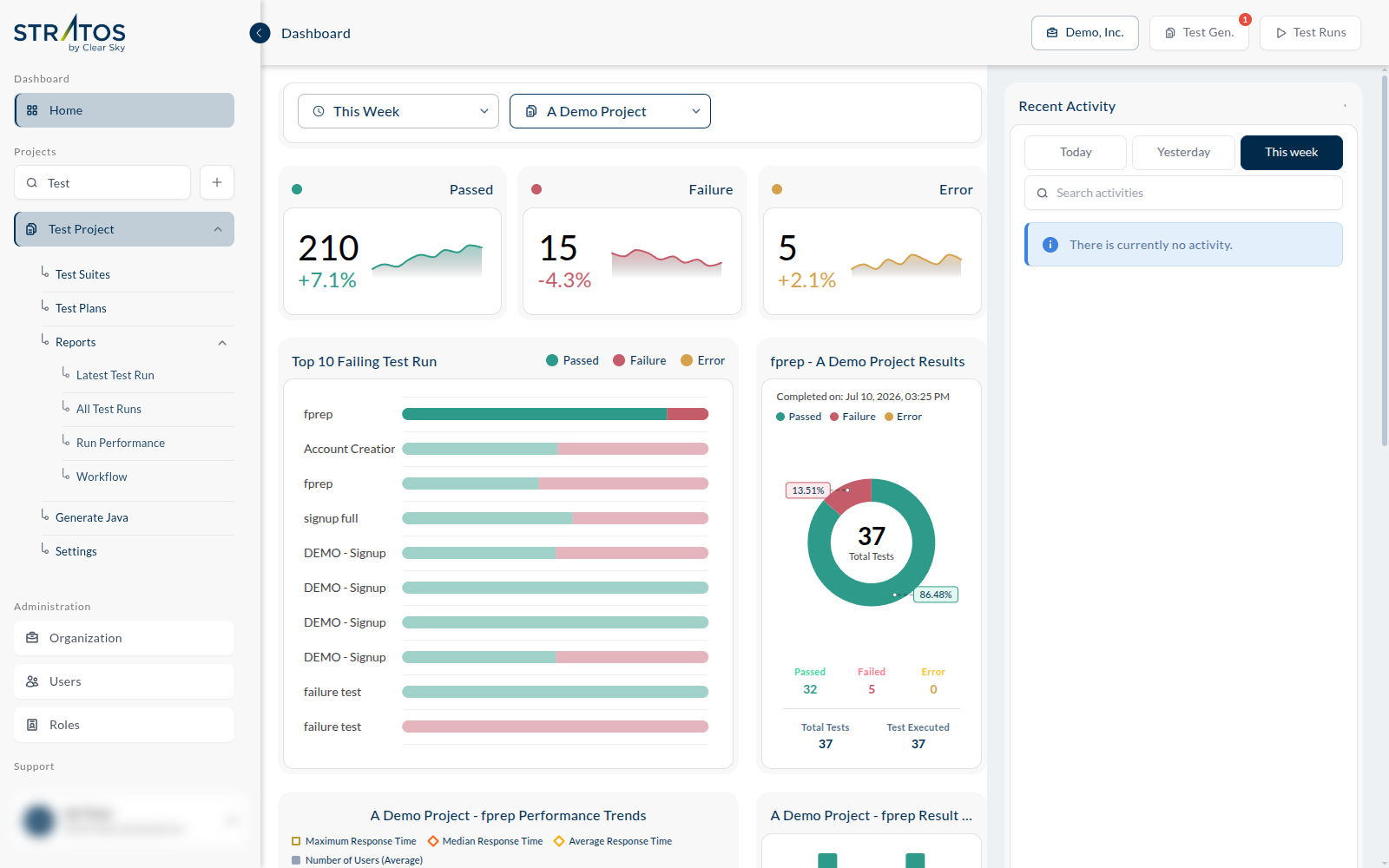
The project list can get long. Type into Search project to narrow it — the list filters as you type.
You can collapse the sidebar with the arrow at its top edge, which gives the content area the full width. Click it again to bring the sidebar back.