Test Suites and Features
This is where your tests live, and the screen you will spend most of your time on. It has two panes: the catalog of suites on the left, and the details of whatever you select on the right.
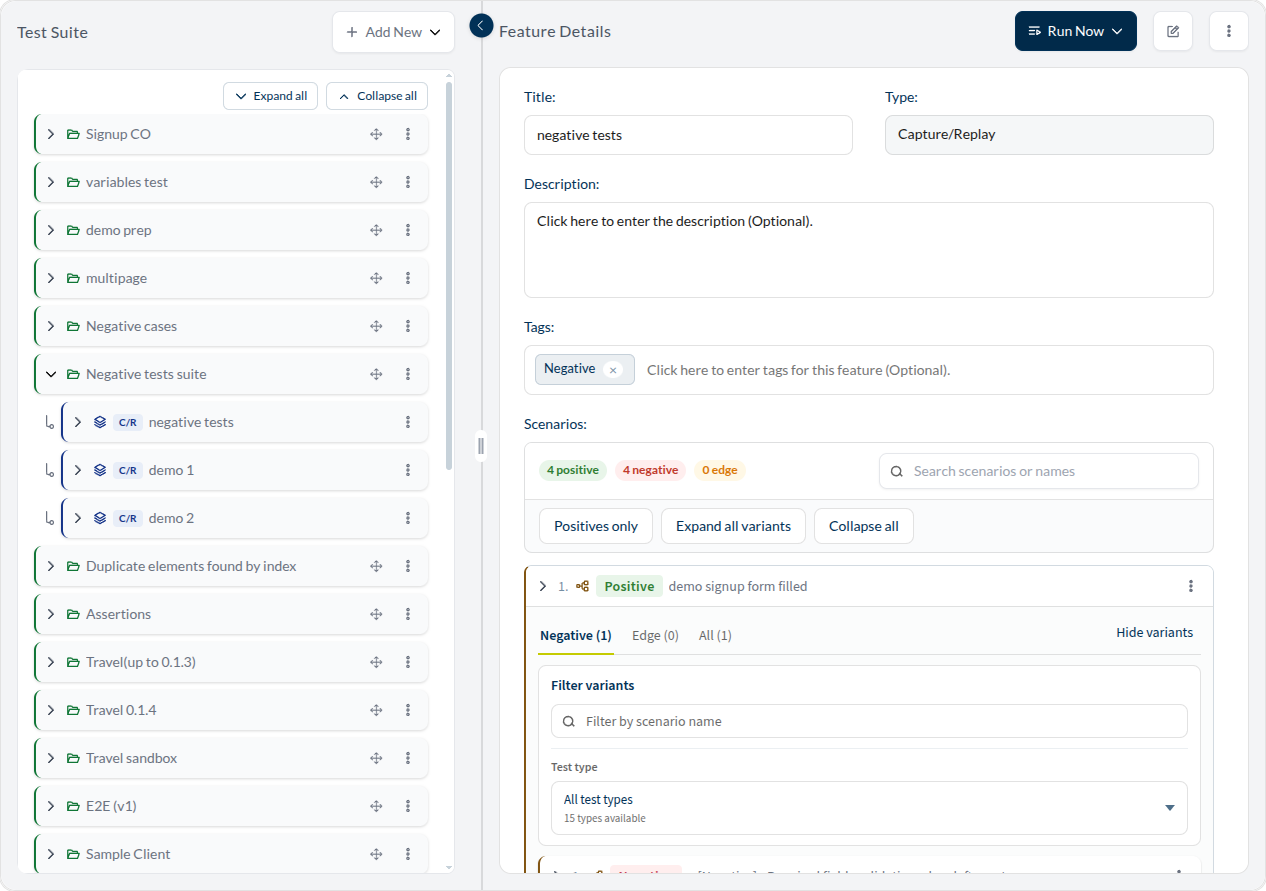
The catalog
A test suite is a folder. It holds features, and it can hold other suites — nest them as deep as your project needs.
- Add New creates a suite at the top level.
- Expand all / Collapse all open and close the whole tree at once.
- Each row has a move handle for dragging a suite elsewhere in the tree, and a ⋮ menu.
- The divider between the panes can be dragged to give the catalog more room, or the list can be hidden entirely.
The ⋮ menu on a suite offers:
| Edit test suite | rename it, change its details |
| Delete test suite | remove it and everything inside it |
| Add child test suite | nest a new suite under this one |
| Add new feature | create a feature here — choose its runner: Capture/Replay or Framework-Based Automation |
| Workflow report | see Workflow |
Most features do not get created this way. They arrive from the Chrome Extension: you record a test, upload it, and it lands in the suite you chose. Creating a feature by hand is for the cases where there is nothing to record.
Features
A feature is a subset of recorded tests. In the catalog it carries a badge naming its runner — C/R for Capture/Replay, which is the kind the extension produces.
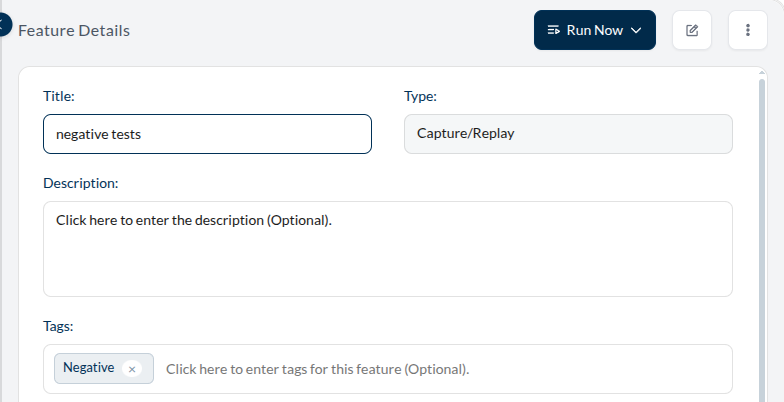
Select one and the right pane shows its details:
- Title and Description
- Type — the runner, for example Capture/Replay
- Tags — free labels. They are how you group tests across suites, and how you later pick a slice of them to run.
- Scenarios — the paths through the feature (below)
Top right: Run Now starts the feature immediately, the pencil opens it for editing, and the ⋮ menu holds the rest.
Scenarios and their variants
A scenario is one journey through the feature — one path a real user takes. Scenarios are positive: they describe the application working as intended.
A variant takes one of those positive scenarios and changes a single thing so that it should fail:
- Negative — invalid input: a required field left empty, an email that is not an email, whitespace where a name belongs
- Edge — the boundaries: the longest value a field will accept, the first one it rejects
This is the idea to hold on to: a variant is not a separate test. It reuses the positive scenario's journey — the same navigation, the same sign-ins, the same steps — and changes one field at the end. That is what makes it trustworthy: it reaches the form the way a real user reaches it.
The counters above the list say how many of each the feature has — for
example 4 positive · 4 negative · 0 edge.
- Positives only hides every variant, leaving the journeys.
- Expand all variants shows each scenario with its variants nested underneath, tabbed Negative, Edge and All.
- Search scenarios or names filters the list.

Inside an expanded scenario, Filter variants narrows the list further — by name, or by Test type. A test type is the kind of check a negative test performs: a required field left empty, a value past the maximum length, an invalid format, and so on. The dropdown tells you how many types exist in total and how many are present in this group.
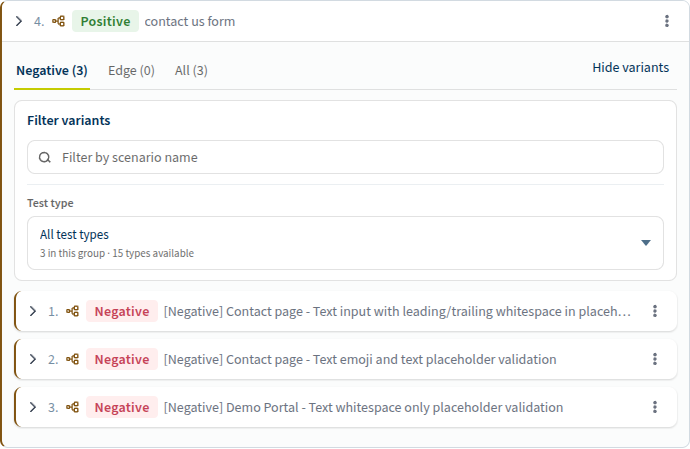
Negative and edge variants are usually not written by hand — Studio generates them from your positive scenarios. See Generating negative tests.
Running what you see
Run Now runs the feature straight away. To run several features together, or on a schedule, use a test plan. What happens next — the live view, the results, the evidence — is in Running tests and Reports.