Project Settings
Settings, in the project's menu, opens Manage Project — eight tabs holding everything the project does that is not a test.
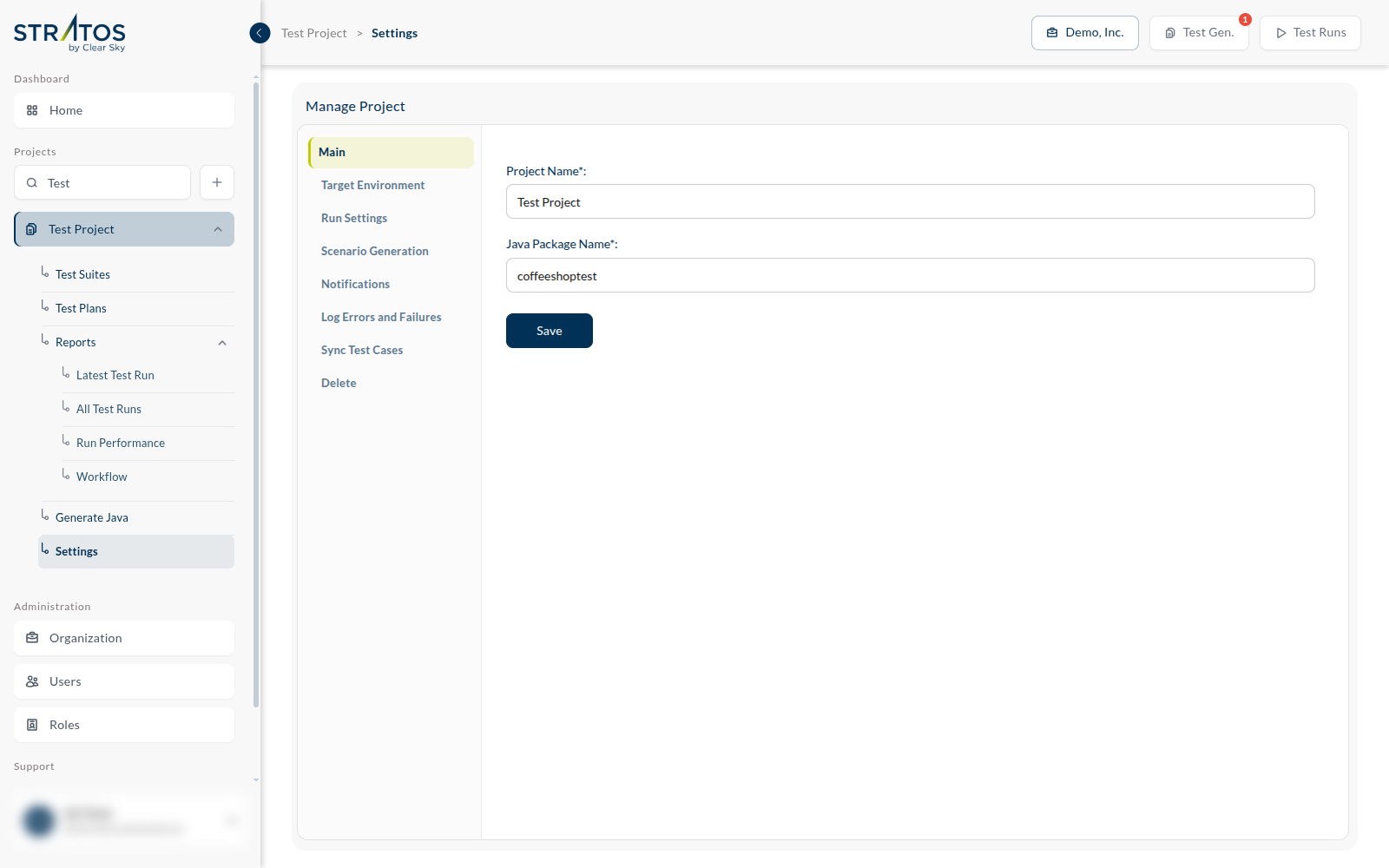
Main
The project's name, and the Java Package Name used when you export the tests as Java.
Target Environment
The environments and their destinations — the mapping that lets one recorded test run against test, staging or production. The idea is explained in Projects; this tab is where you maintain it.
Each row is a destination: a name and an address. Add rows, edit them, and add further environments as your estate grows.
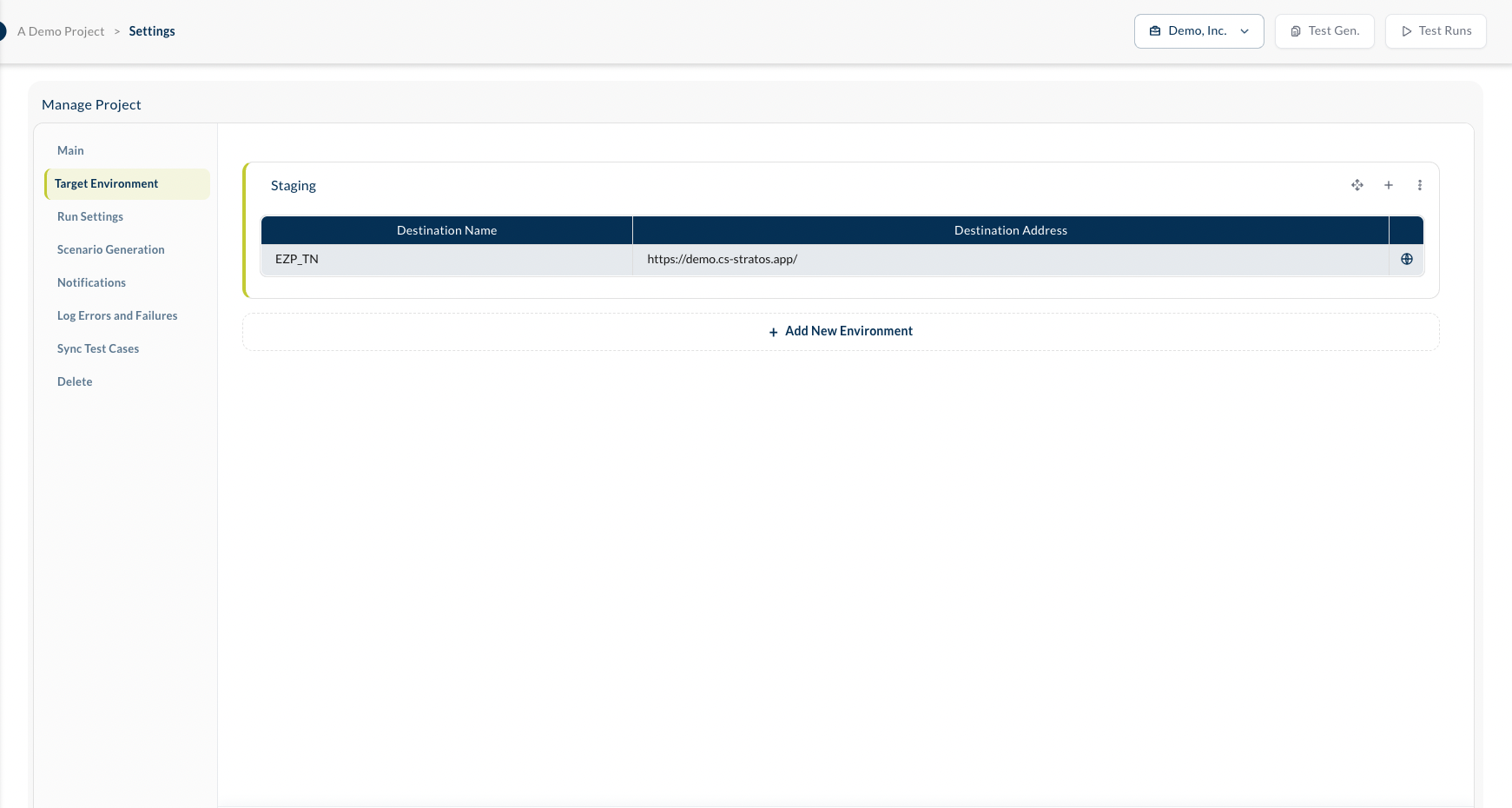
Beside each row is a geo lookup. It resolves the address and tells you where it actually is:
| IP and Host | what the name resolves to |
| City, Region, Country | where that machine is |
Useful more often than it sounds. When a test only fails from one run location, the first question is whether the destination is even in the region you think it is.
Run Settings
The project's defaults. Every test plan starts from these, and every plan can override them.
| Run Location | the region tests run in |
| Run Browser | the browser they run in |
| Generate Screenshots | how much evidence a run captures — up to Always. More evidence, slower and heavier runs. |
| Number of Parallel IVU | how many tests run at once |
| Create bugs for run | whether a failing test raises a defect, and on what: On Error, On Failure, or neither |
Create bugs for run needs somewhere to put the bug — that is the next tab but one.
Scenario Generation
One decision, and it is the one you will meet the second time you generate negative tests for a scenario you have generated for before:
When a negative or edge case already exists:
- Replace the existing scenario with the newly generated one
- Do not generate a new scenario and show an error message
Replace keeps regeneration cheap: change the form, generate again, get tests that match. Do not generate protects variants you have edited by hand from being quietly overwritten. Pick according to which of those two you would rather lose.
Notifications
Where the project tells you what happened: Email, Slack, Microsoft Teams. Each is off until you enable it, and enabling it opens its own settings — which events, and to whom.
Log Errors and Failures
The defect tracker. This is where the bugs from Create bugs for run are actually filed.
| Integration Type | None, Jira, or Azure DevOps |
| Organization, Project, URL | which tracker, and where in it |
| Token | the credential Studio uses to file the bug |
Validate checks the connection before you rely on it. Do use it: an unvalidated integration fails silently at exactly the wrong moment — the run that finally found something.
This is the other half of the Workflow report. No integration, no defects; no defects, no work items — and an empty Workflow report that looks like good news.
Sync Test Cases
Mirrors the project's test cases into Azure DevOps, so that a test recorded here appears in the test plans your organization already tracks there. Off unless enabled.
Delete
Removes the project and everything in it. It asks you to type the project's name first, and the button stays disabled until you do — which is the only warning you get, because there is no undo.