Generating Negative Tests
Recording a test shows that your application works when everything goes right. Most defects, though, live where things go wrong: a required field left empty, a name pasted with a trailing space, a number one past the maximum. Writing those tests by hand is tedious, and nobody ever writes all of them.
Studio writes them for you. It reads a positive scenario you have already recorded, finds the fields the user filled in, and produces a variant for each way that field can be abused — reusing the original journey, and changing exactly one thing.
Starting a generation
Generation belongs to a scenario, not to a feature — a negative test is always a twist on some particular journey.
- Open a feature and find the positive scenario you want covered.
- Open its ⋮ menu and choose Generate Negative and Edge Scenarios.
- Pick the test types you want (below), and confirm.
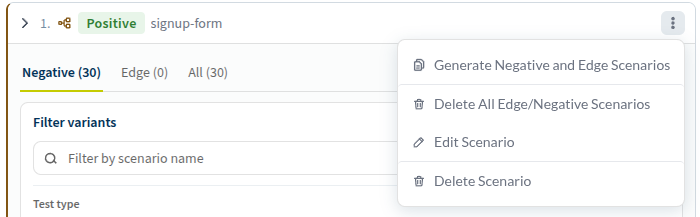
The same menu also holds Delete All Edge/Negative Scenarios, which clears the generated variants of that scenario and leaves the positive one alone.
Choosing what to generate
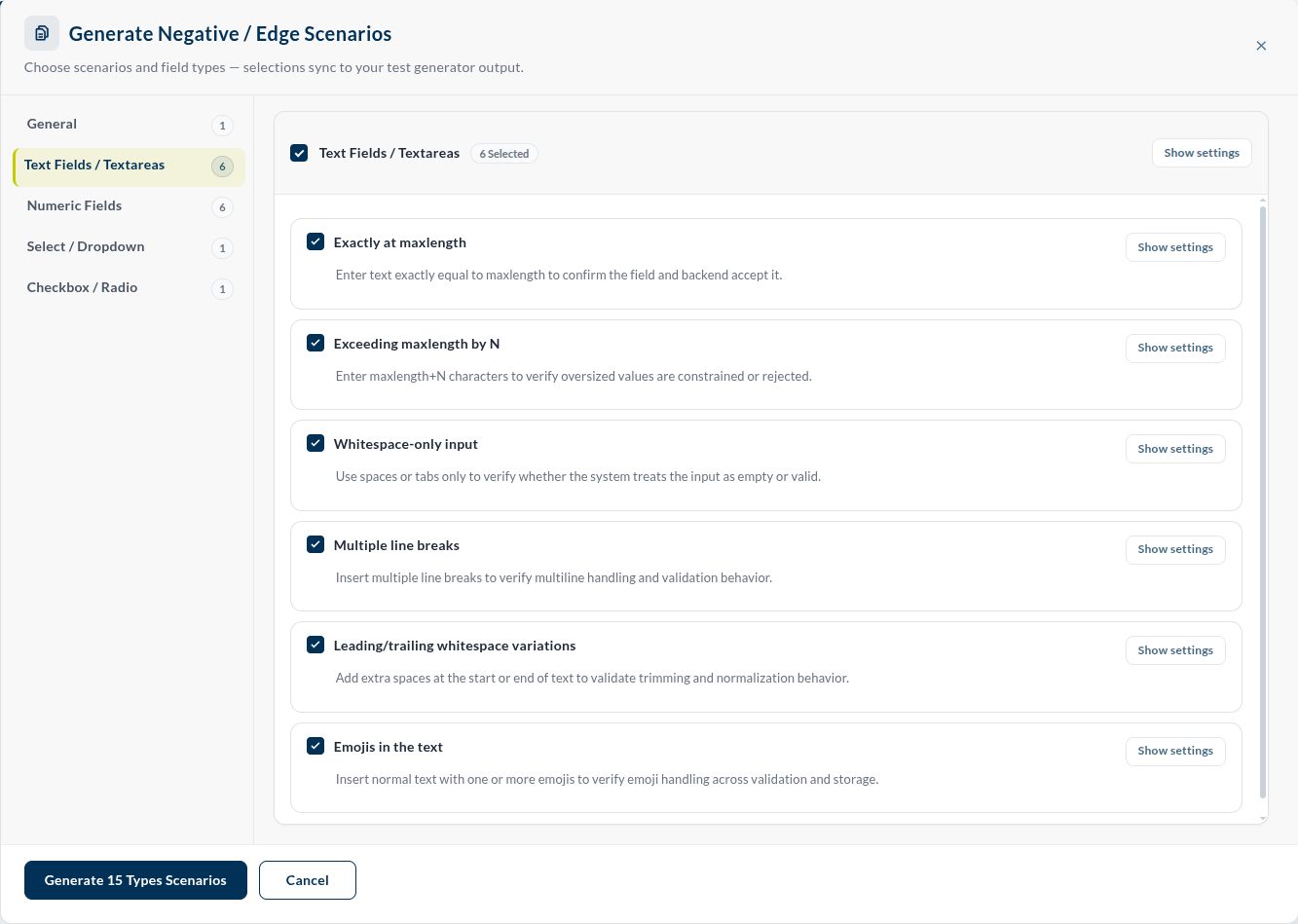
The dialog groups the test types by the kind of field they apply to. Each type is a checkbox with a one-line explanation, and its own Show settings where the details can be tuned — how far past the maximum to go, for example.
Everything is selected by default, and the button tells you what you are about to ask for: Generate 15 Types Scenarios. Studio only generates a type where the form actually has a field for it — asking for numeric checks on a form with no numbers costs you nothing.
The test types
General
| Empty required text | Leave a required text or textarea field blank, to check the submission is blocked with a message that actually says so. |
Text fields and textareas
| Exactly at maxlength | Text exactly as long as the field allows — this one must be accepted. |
| Exceeding maxlength by N | One character too many, to see the value constrained or rejected. |
| Whitespace-only input | Spaces and tabs only. Does the field treat that as empty, or as a name? |
| Multiple line breaks | Several line breaks, to check multiline handling. |
| Leading/trailing whitespace | A stray space before or after the value, to check trimming. |
| Emojis in the text | Ordinary text with an emoji in it, through validation and storage. |
Numeric fields
| Number exactly at minimum | The lowest allowed value — must be accepted. |
| Below minimum (min−N) | One step under the floor. |
| Number exactly at maximum | The highest allowed value — must be accepted. |
| Above maximum (max+N) | One step over the ceiling. |
| Zero when positive expected | 0 where the business rule wants a positive number. |
| Non-numeric text | Letters in a numeric input. |
Select / dropdown
| Selecting the placeholder option | Leave the dropdown on --Select-- and check a required field refuses it. |
Checkbox / radio
| Toggled opposite to the default | Flip the default, and check the behaviour is right in both states. |
Not everything here is a negative test. Exactly at maxlength and Number exactly at minimum / maximum assert the opposite — that a valid boundary value is accepted. They are edge tests, and they belong in the same pass: the boundary is exactly where an application is most likely to be wrong in either direction.
Watching it run
Generating is not instant — Studio opens your application, walks the recorded journey, and inspects each field as a real browser sees it. That is what makes the result trustworthy, and it is why the work happens in the background.
Test Gen. in the header opens the Negative Test Generation panel, which lists the generations currently running. When none are, it says so.
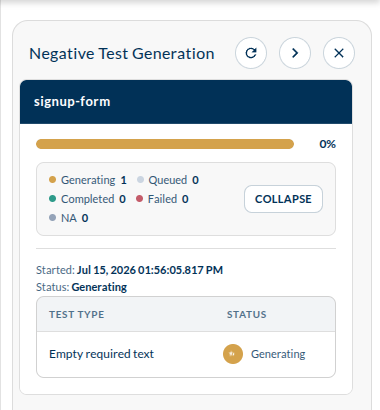
When a generation finishes, its variants appear under the positive scenario they came from, and the feature's counters go up. Open the scenario's Negative tab to read them — see Test suites and features.
What to do with the result
Generated variants are ordinary tests. Run them like any other — Run Now on the feature, or include the feature in a test plan — and read the outcome in the report.
A generated test that fails is the interesting case: it means your application accepted something it should have refused, or refused it without telling the user why.