Test Plans
Run Now on a feature is for one test, right now. A test plan is for everything else: which tests run together, where they run, in which browsers, how many at a time, when to stop, and whether a defect should be raised when something breaks.
A plan is saved and reused. It is specifically helpful to run the test plan before a release.
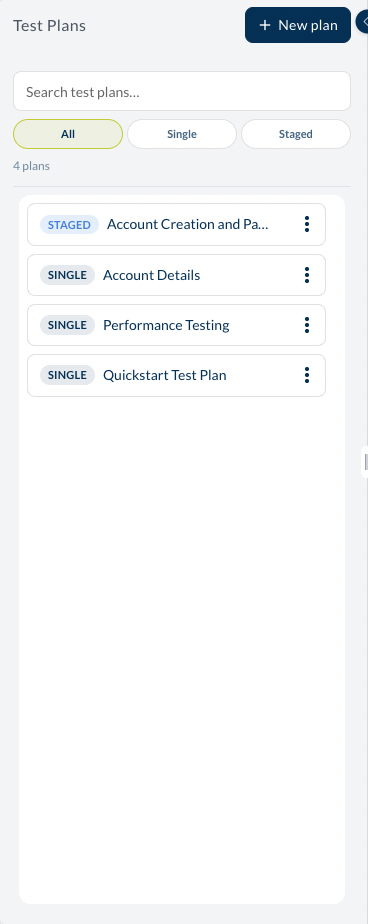
The catalog
The left pane lists the plans in the project. Each carries a badge saying what kind it is, and the filters above narrow the list to one kind. New plan creates one.
| Single | One set of tests, run together. The everyday plan. |
| Staged | Several stages, run in order. Each stage has its own tests and its own settings, and a stage can be marked Always Run so that it happens even if an earlier stage failed — useful for the clean-up a failed run would otherwise skip. |
What a plan holds
Select a plan and its settings open on the right, grouped into tabs. The chips along the top summarise them, so you can see the shape of a plan without opening a single tab: how many test cases, the environment, whether it runs manually or on a schedule, how many replicates, the parallelism, and the screenshot policy.
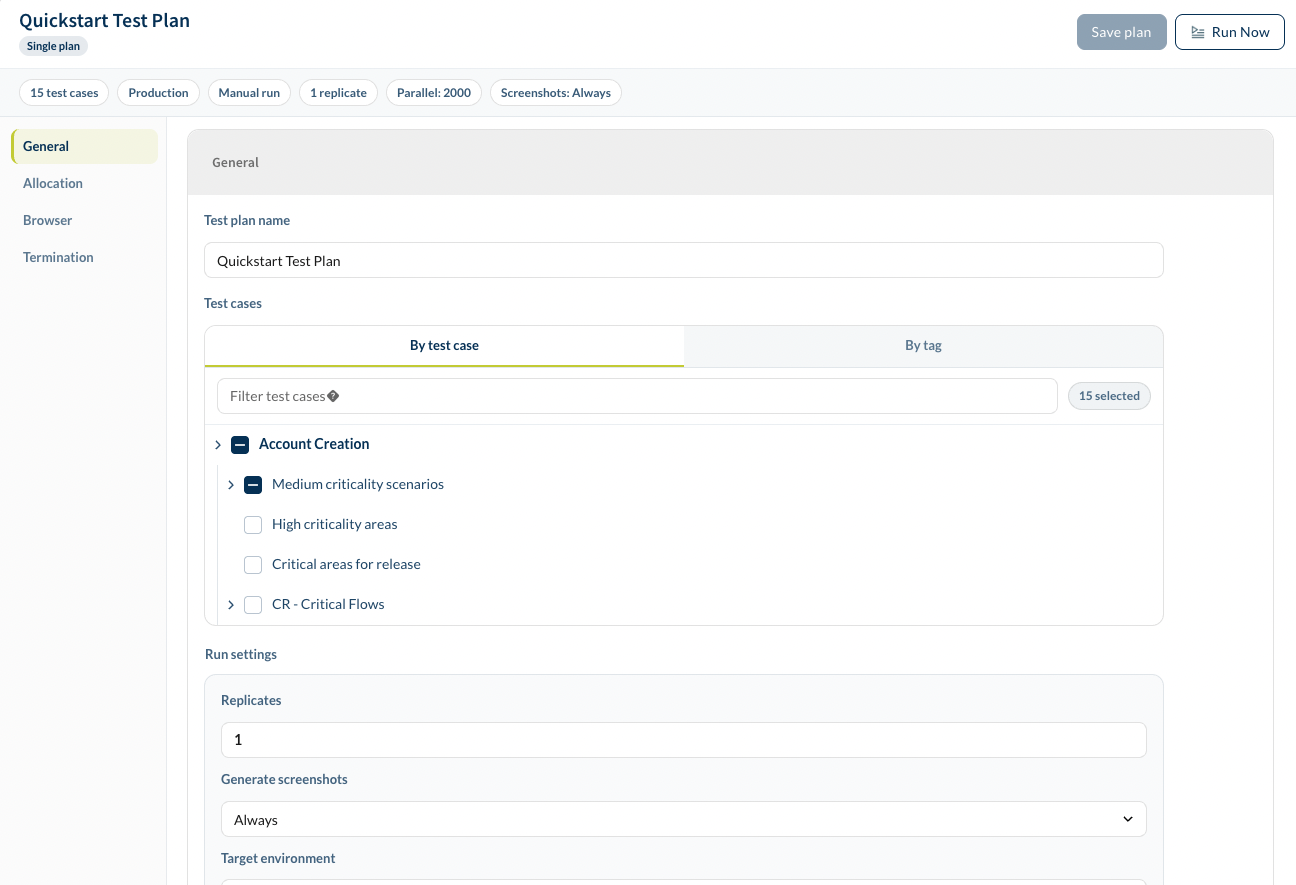
General
The plan's name, and the tests it runs.
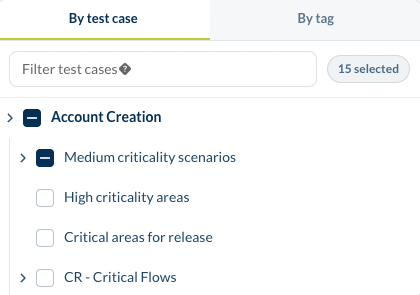
Tests can be picked two ways, and the choice matters more than it looks:
- By test case — tick features out of the suite tree. The plan then runs exactly those, and only those.
- By tag — name a tag instead. The plan runs whatever carries that tag
at the time it runs. For example, tag a new feature
Smokeand every plan that has this tag selected picks it up on its own; no plan needs editing.
Below the picker are the run settings — when the plan runs at all:
- Manual Only — it runs when someone runs it
- On Schedule — once, at a time you set
- Recurring — on a repeating schedule
Allocation
Where the tests run, and how many at once.
- Location — the region the browsers run in. Static pins the run to a fixed location; Dynamic lets Studio place it.
- Public IP Address — for applications that only admit traffic from a known address.
- Number of Parallel IVU — how many tests run side by side. More is faster, up to the limit your organization allows; it is also more load on the application under test, which is worth remembering when the application is a staging box.
Browser
Which browsers the tests run in. At least one must be chosen; Select All takes them all, and the plan then runs every test in every browser selected.
Defects
Create Defect on Run — when a test fails, raise a defect to integrated defect tracking system automatically instead of leaving it for a human to notice.
Termination
Terminate Run After Errors/Failures — stop the whole run once it has produced this many failures. A long plan against a badly broken build otherwise spends an hour proving the same thing over and over.
Running a plan
Save the plan, then run it. What happens next — the live view, the results, the evidence — is in Running tests and Reports.