Generate Java
Your tests live in Studio and run in Studio's cloud. Generate Java takes them out: it exports the project's recorded tests as a Java project you can open in an IDE, commit to your repository, and run in your own pipeline.
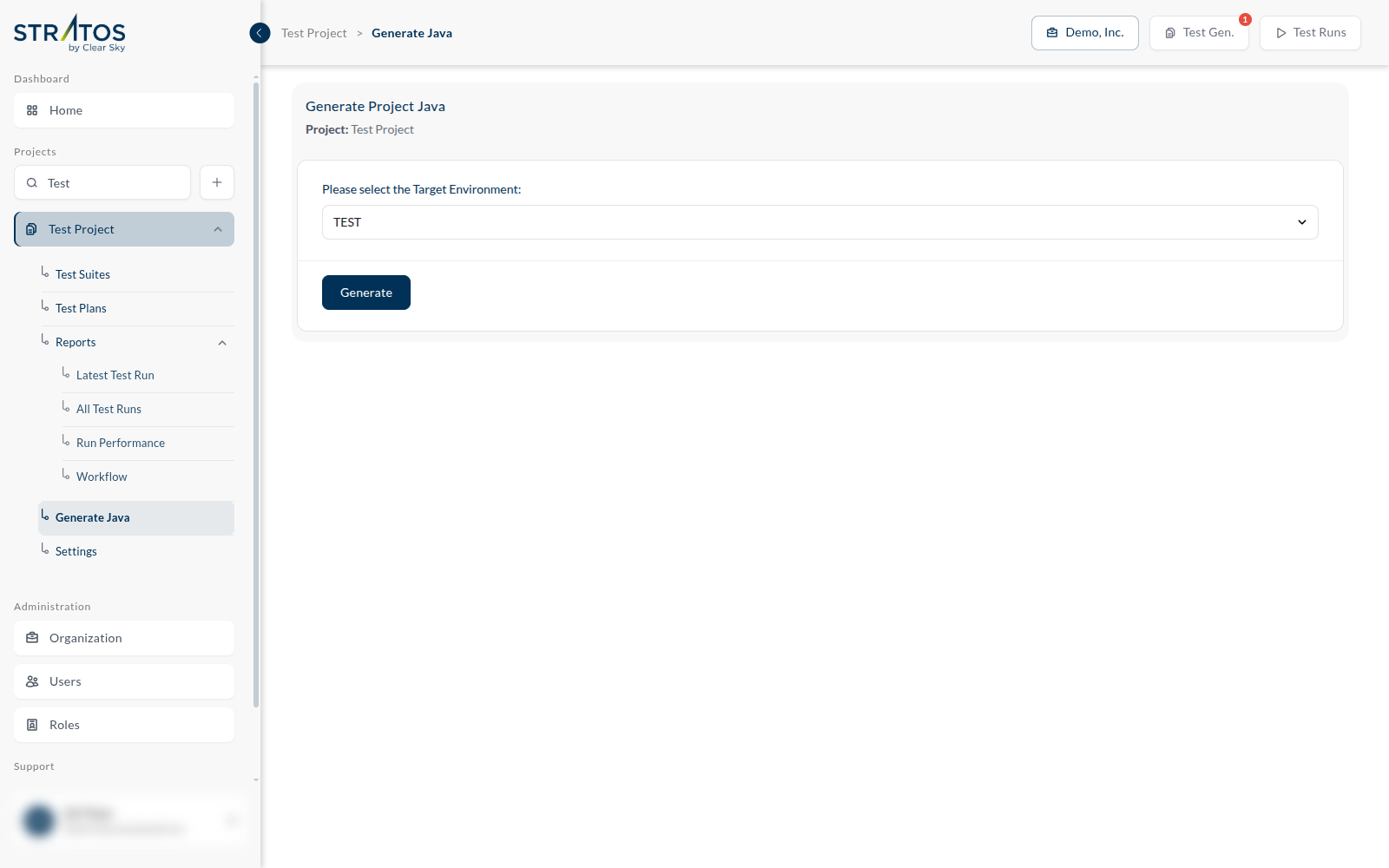
It is one screen. Choose the Target Environment the exported tests should point at, and press Generate.
Why the environment matters here
A recorded test refers to its destinations by name, and Studio resolves those names when it runs. Exported code has to resolve them too — so the export is bound to one environment, and it is the environment you pick on this screen. Export against TEST and the generated project points at your test addresses.
The Java Package Name the code is generated under comes from the project's settings, on the Main tab.
This is a one-way export, not a sync. Editing the generated Java does not change anything in Studio, and re-recording in Studio does not change code you have already exported — you export again. If you want your test cases mirrored into Azure DevOps instead, that is Sync Test Cases, in the project settings.