Import & Export
Tests can be moved in and out of the extension in two ways: as JSON files on your computer, or directly from Stratos™ Studio.
Export scenario to a file
Open the ⋮ menu in the Action List header and select Export Actions. The extension downloads a JSON file named scenario-actions-<timestamp>.json containing the actions and their variables.
Use this to back up a test, share it with a teammate, or move it to another machine.
Import scenario from a file
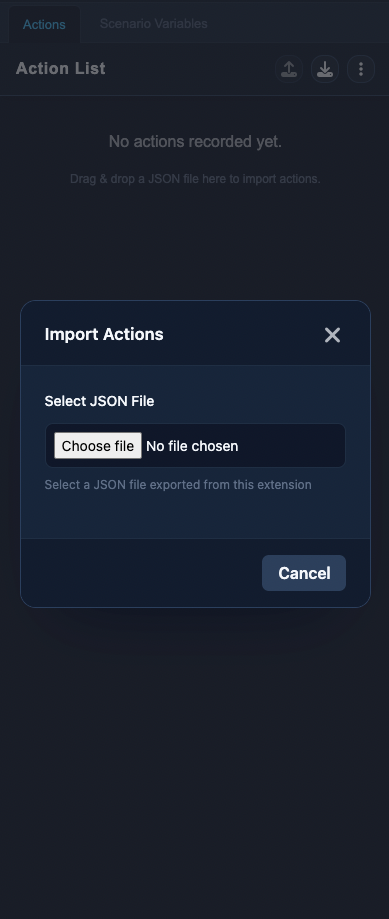
Open the ⋮ menu and select Import Actions. In the Import Actions dialog, choose a JSON file previously exported from the extension. If the file has problems, the dialog lists the validation errors; otherwise the actions are added to your action list.
You can also drag & drop a JSON file straight onto the empty action list.
Import a scenario from Stratos™ Studio
Click the Import scenario into action list button next to the upload button in the Action List header (you need to be signed in). Browse the tree of test suites, features, and scenarios and click a scenario to import it.
- If a scenario has multiple data rows, pick the row to use and click Import
- If the imported scenario references variables that need configuration, the extension warns you and creates placeholders — configure them in the Scenario Variables tab (see Variables)
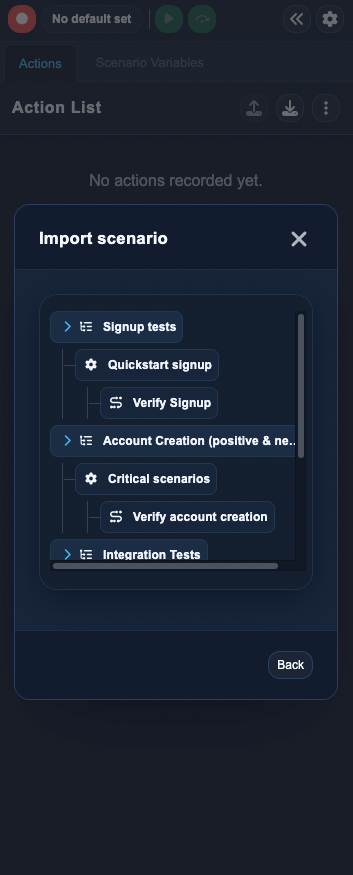
Import a scenario, adjust its steps or variables, and upload it back as an update — see Uploading a Test.