Assertions
An assertion verifies that the page is in the expected state during playback — for example, that a confirmation message is visible or a text in the element matches the expected value. A test with assertions doesn't just repeat your clicks — it checks the results by covering an actual test condition.
Adding assertions while recording
While recording, switch the recording mode to Assert using the Actions dropdown in the header (see Recording modes). In this mode, clicking an element on the page records an assertion for it instead of a click.
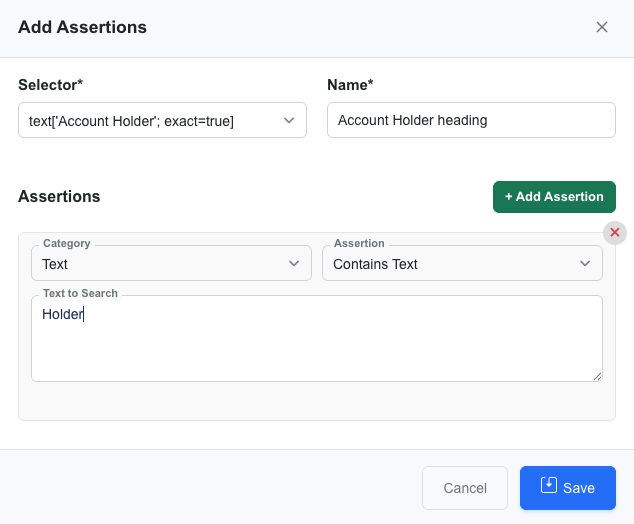
Expected values in this popup support variables the same way step inputs do — type @ and pause to insert one.
Adding assertions manually
You can also add or edit assertions in the action editor:
- Open Add Action (or Edit Action on an existing assert action) and choose the Assert type
- Give the assertion a Name
- Click + Add Assertion and choose a Category and an Assertion
- Fill in the expected values and click Save
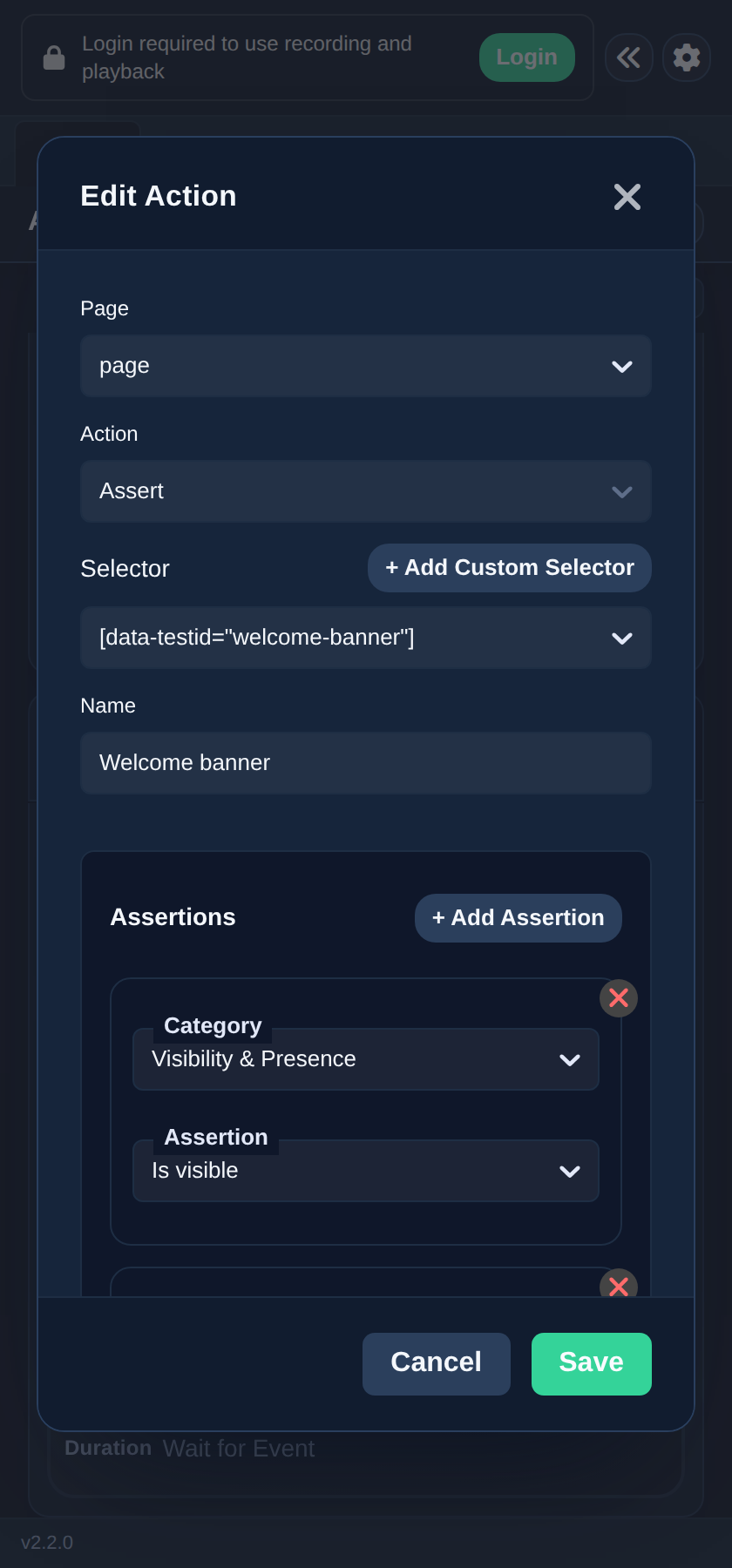
A single assert action can contain multiple assertions.
Assertion categories
- Text — verify the text content of an element
- Numeric — verify numeric values and comparisons
- Visibility & Presence — verify that an element is visible or present on the page
- Attributes — verify an element's attribute values
- CSS — verify an element's CSS properties
- Element State — verify element state such as enabled, checked, or selected
The maximum time playback waits for an assertion to pass is the Assertion Timeout in Settings (15 seconds by default).