Variables
Variables let you reuse values across steps instead of hardcoding them. They live in the Scenario Variables tab of the panel and appear as colored chips wherever they are used in step inputs.
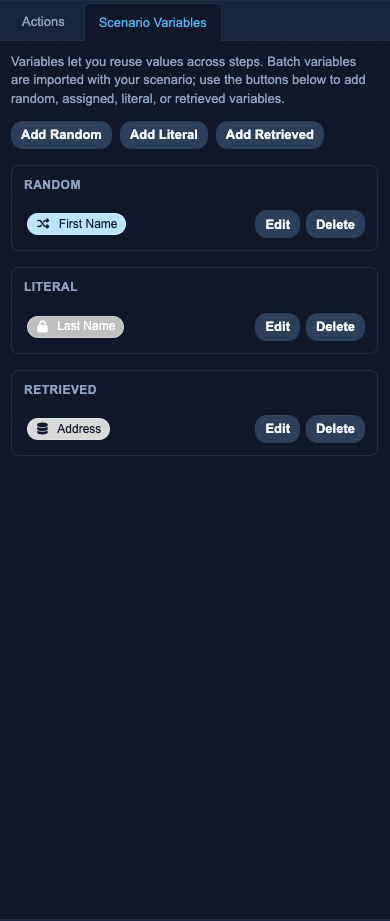
Variable kinds
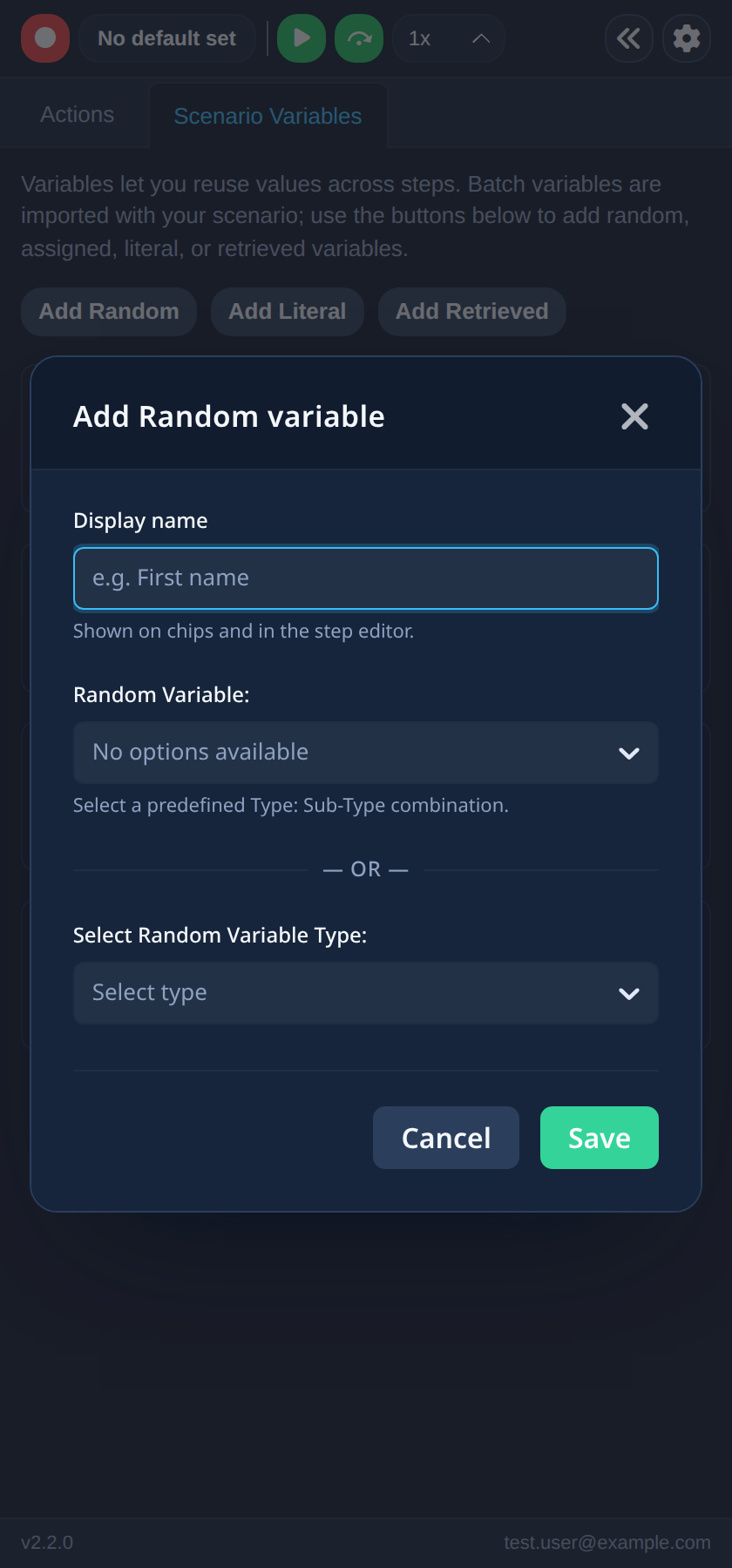
- Random — generated at playback from a predefined generator. Pick a Type (category of random data, e.g. finance or person) and a Sub-Type (the specific generator); some generators offer extra options
- Literal — a fixed value you enter once and reuse across steps
- Retrieved — a value retrieved by field name during test runs
Adding and editing variables
Use the Add Random, Add Literal, and Add Retrieved buttons at the top of the Scenario Variables tab. Every variable has a Display name (shown on chips and in the step editor) and a Color; the remaining fields depend on the kind.
To use a variable, open a value field — an input's value, a selector, or an assertion's expected value — type @, and pause briefly; a picker opens so you can insert the variable. The chip shows which variable will supply the value at playback.
Typed @@, or a pasted @, is inserted as a literal @ character instead of opening the picker.
To change or remove a variable, use Edit / Delete on its row.
A variable that is still used in step inputs cannot be deleted — remove or replace those inputs first.
Random variables at playback
When a test uses random variables, starting playback asks whether to Use the same values as the last run or Obtain new values from the generator — see Playing Back a Test. After playback you can review what each variable resolved to in the variable resolution summary (enabled by default in Settings).