Playing Back a Test
Playback executes the actions in your action list against the live page, one after another, so you can verify the test works before uploading it.
Playback controls
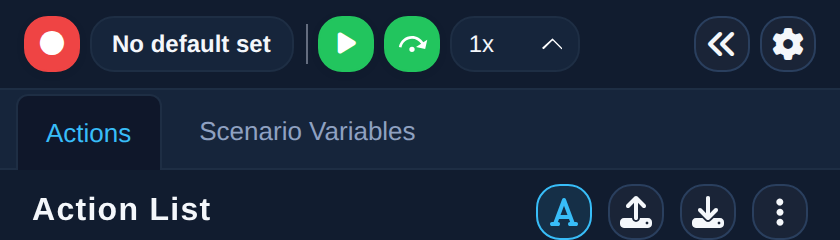
- Playback — run all actions sequentially. While running, the button changes to Pause; when paused, it changes to Continue Playback
- Step Over — execute one action and pause. Useful for verifying actions individually
- Stop — stop the playback
- Playback Speed — choose 1x (fastest, no delay), 0.75x, 0.5x, or 0.25x (slowest). Slowing playback down helps you watch each action as it happens
Playback requires at least one recorded action, and recording must be stopped first.
Tests with random variables
If your actions use random variables, starting playback asks how to resolve them:
- Use the same values — run with the last resolved variable values
- Obtain new values — resolve the variables again, producing fresh random data
See Variables for details.
When a selector matches multiple elements
If a selector matches more than one element on the page, the way the extension decides which one to interact with depends on your duplicate-handling setting. In the default silent mode the first match is used automatically. If you selected Choose from multiple options in Settings, a Multiple Elements Found dialog appears and lets you:
- Pick first option and retry
- Ignore and continue
- Show all options and let choose — pick the exact element from a list
The corresponding index will be applied to the selector to access the selected duplicated instance of an element during the current and next playback.
Failures and retries
Failed actions are retried automatically (the number of retries and the delay between them are configurable in Settings). When a selector succeeds during playback, it can be automatically promoted to be the default selector for that action — see Selectors.