Selectors
A selector instructs playback how to find the element an action targets. When you record an action, the extension automatically generates several selectors of different types for the element — if one stops working, the others act as fallbacks.
The selector types used for generation (Role, Label, Text, Placeholder, Alt Text, Title, Test ID, CSS, XPath, Chain) and the maximum number of selectors per action are configurable in Settings.
Viewing and managing an action's selectors
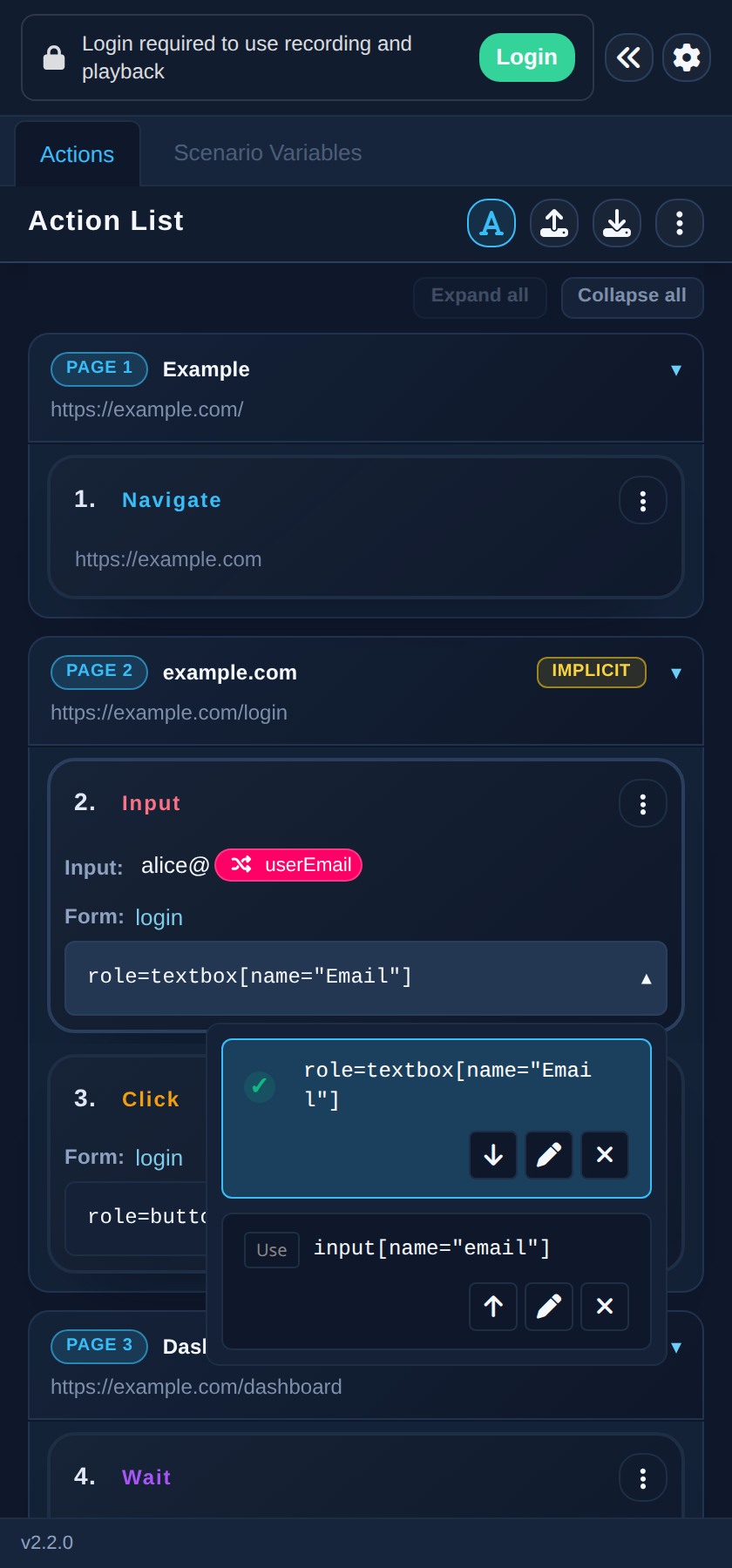
Open an action's selector dropdown to see its selector list:
- The ✓ mark shows the default selector — the one playback tries first
- Click Use on another selector to make it the default
- ↑ promoted marks a selector that was automatically promoted because it worked during the last playback
- Use the arrows to reorder selectors, the pen icon to edit, and ✕ to delete (at least one selector must remain)
Adding selectors
Click Add Custom Selector on an action (or + Add Custom Selector in the action editor) to open the selector dialog. There are two ways to add selectors:
- Pick Element — click the button, then click the element on the page. The dialog shows the picked selectors: one is marked as primary, and you can tick Also add on the alternatives to include them too
- Manual entry — type selectors into the text area, one selector per line
Tick Set as default selector to make the new selector the default, then click Add.
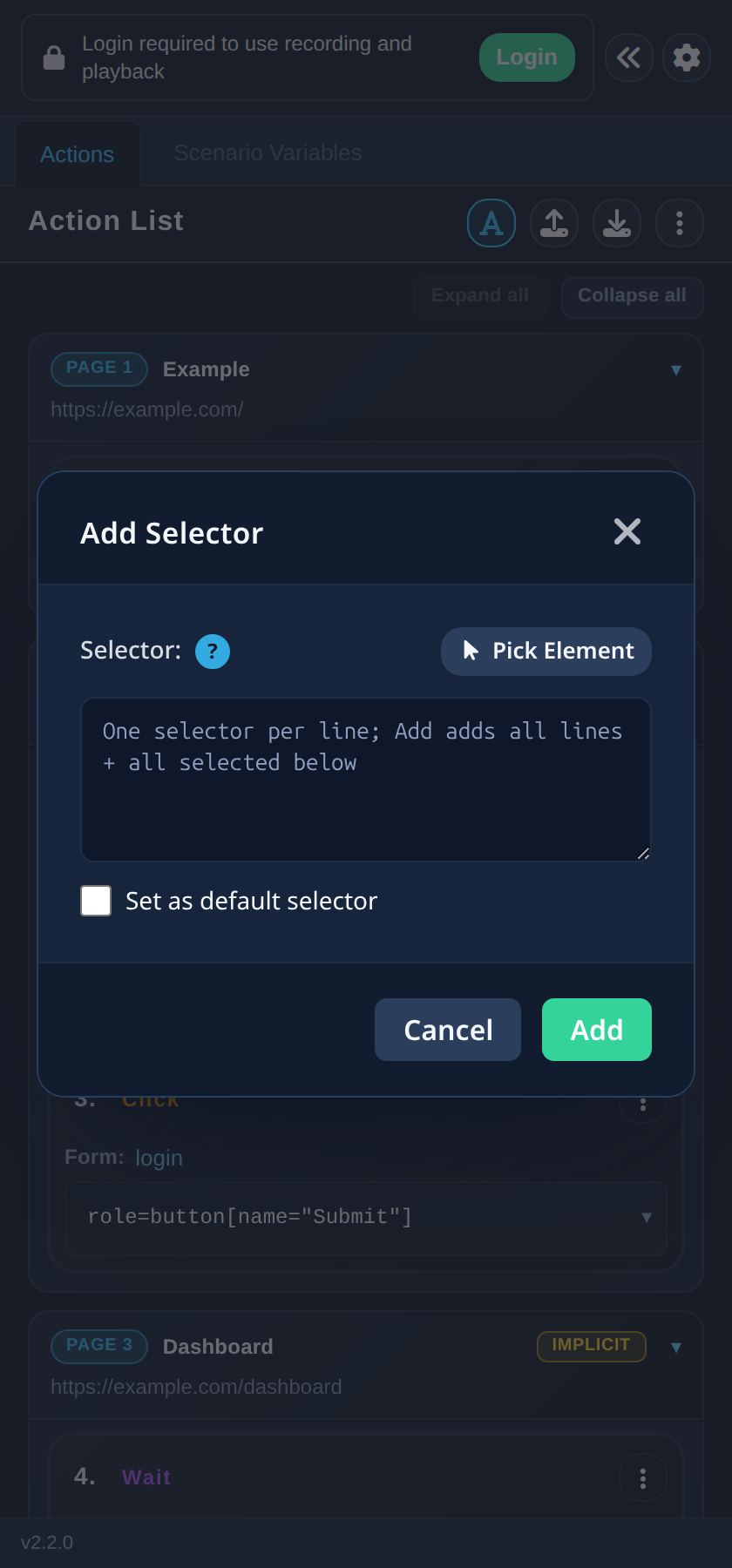
Not sure about the selector syntax? Click the ? button next to the selector field to open the selector format documentation.
Selector text accepts variables — type @ in the selector field and pause to insert one, the same as in a step's value field.
Selectors during playback
When a selector works during playback, it can be promoted to default automatically (Promote Successful Selector in Settings). If a selector matches multiple elements, see Playing Back a Test. Selectors that failed during playback are marked with the reason — for example Element not found, Element not visible, or Element is disabled — and a suggested fix where one is available. You can clean failed selectors up with Delete All Failed Selectors.