Settings
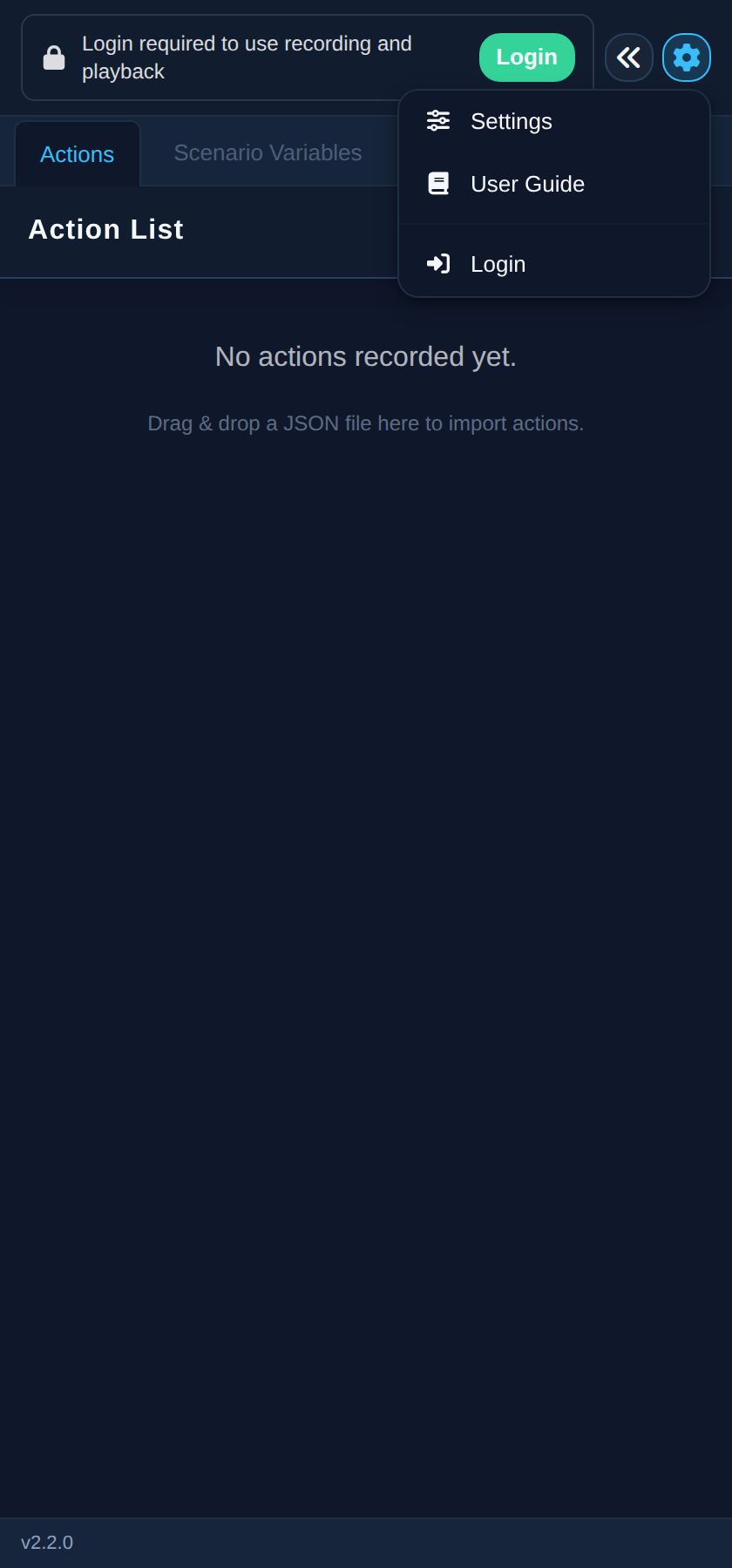
The settings menu (gear icon in the panel header) contains:
- Set Project — choose your organization and project (shown when you have several)
- Settings — open the settings panel described below
- User Guide — open this documentation
- Login / Logout
The settings panel has three tabs. Click Save Changes to apply; closing with unsaved changes asks for confirmation.
General
- Show Selector Tooltip (on by default) — display a tooltip with selector information when hovering over elements
- Show Gherkin keywords (off by default) — show GIVEN, WHEN, THEN, and AND badges on each step in the action list
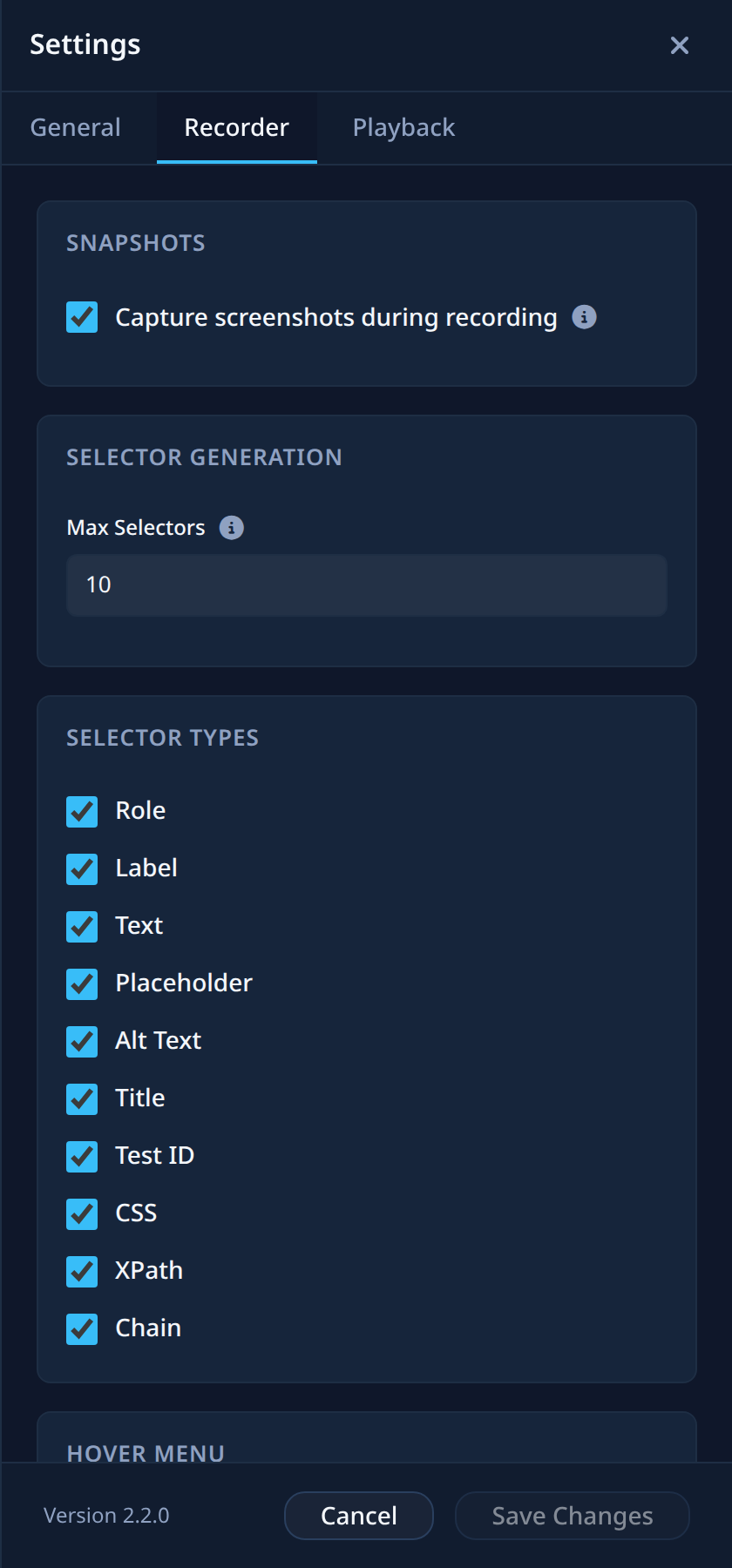
Recorder
- Capture screenshots during recording — automatically capture a screenshot for each recorded action; you can still retake screenshots manually when disabled
- Max Selectors — the maximum number of selectors generated per action
- Selector Types — which selector strategies to generate: Role, Label, Text, Placeholder, Alt Text, Title, Test ID, CSS, XPath, Chain
- Enable Hover Menu — show an action menu when hovering over elements during recording, with a configurable Hover Menu Delay (ms)
Playback
Timeouts:
- Action Timeout (ms) — maximum time to wait for an action to complete
- Assertion Timeout (ms) — maximum time to wait for an assertion to pass
- Navigation Max Wait (ms) and Navigation Poll Interval (ms) — how navigation after a click is detected
Retry & speed:
- Enable Retries, Max Retries, Retry Delay (ms) — automatic retry of failed actions
- Slow Motion Speed (ms) — the base delay used by the playback speed multiplier
Behavior:
- Promote Successful Selector — automatically promote selectors that work during playback
- When Duplicates are Found — how to handle selectors matching multiple elements: Silent mode with Pick first (default) or Ignore and continue, or Choose from multiple options to decide in a dialog during playback
- Keep Main Tab Open and Keep Popup Pages Open — what stays open after playback completes
- Show Variable Resolution Summary — show resolved variable values after playback