Recording a Test
Recording captures your interactions with the page — clicks, inputs, dropdown selections, key presses, and navigation — as a list of actions you can replay later.
You must be signed in and the page must finish loading before recording can start. If the Record button is disabled, hover over it to see the reason.
Start recording
- Click Record in the panel header
- Select the destination (site) to record against — recording must begin from an existing destination
- Click Start Recording
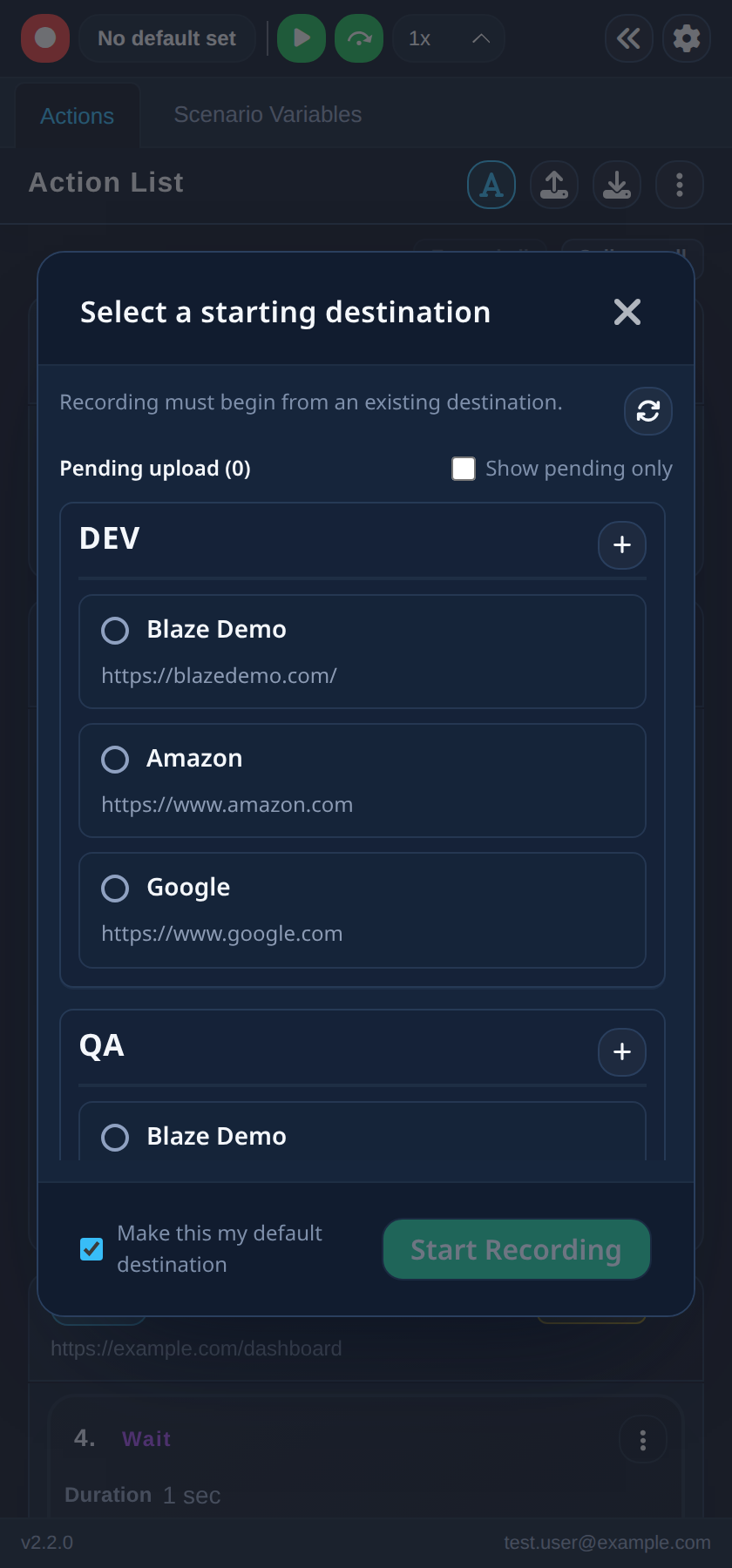
In the destination dialog you can also add a new destination (name and address), filter to pending uploads, and tick Make this my default destination so the next recording starts without asking.
If the action list already contains steps, clicking Record offers two choices:
- Continue Recording — add new steps to the existing recording
- Create New Recording — clear all existing steps and start fresh (you will be asked to confirm)
While recording
As you interact with the page, actions are captured in the action list and the element you are about to interact with is highlighted on the page. Screenshots are taken for each action automatically (this can be turned off in Settings).
Use the header controls to manage the session:
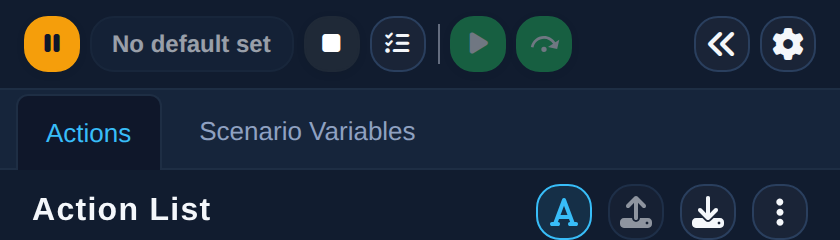
- Pause — temporarily stop capturing; the button changes to Resume
- Stop — finish the recording and keep all captured actions in the action list
Actions are grouped by the page they were recorded on. A new group starts at a navigation step, or when the extension notices that your click or input took you to a different page — see Managing Actions.
Recording modes
While recording, the Actions dropdown in the header lets you switch the recording mode:
- Assert — record assertion actions: click an element to verify it instead of interacting with it (see Assertions)
- Hover — capture hover actions over elements
- Reset to Default — return to the default mode that records clicks and input
You can also enable a Hover Menu in Settings to get an on-page action menu when hovering over elements during recording.